Planner Spreads in my Supernote

How I Use Each Planner Spread on Supernote (Real Examples From My System)


My Supernote isn’t just where I take notes—it’s where my life gets organized. I use a yearly PDF planner (My Deep Guide’s Organizer) as the structure, but the way I actually use it comes down to the spreads. Each one has a job. Each one holds a different kind of information. And together, they keep me from juggling everything in my head.


Here is the link where you can purchase My Deep Guide’s Planner:


Below are real examples of what I put in each spread and why.


Yearly Spread: “What’s Already Spoken For?”


The yearly spread is my big-picture map. I use it to block out the non-negotiables—things that affect how the year flows before I even start planning goals.


What I track here:


  • Vacations (so I can plan around travel instead of “surprise, I’m gone”)

  • PTO requests and approved days

  • Holidays (especially the ones that change dates every year)

  • Pay schedule (this is huge for budgeting and knowing when to plan purchases)

  • Major events (birthdays, weddings, trips, conferences, family stuff)


Example in my planner:


  • I’ll mark a week in July as “Vacation (PTO)” and then a few days before it as “Prep / errands” so I’m not scrambling last minute.

  • I’ll highlight paydays and then use that to plan when bills get paid or when I can comfortably schedule something extra.


The yearly spread answers one question for me: What is this year already committed to?


Quarterly Spread: “What Am I Building This Season?”


Quarterly spreads are for projects—not tasks. This is where I zoom into seasons and decide what actually deserves focus.


What I track here:


  • Projects

  • Milestones

  • Project recap notes (what got done, what didn’t, and why)


Example in my planner:


  • Project: “Supernote Passport refresh”


    • Milestone 1: Outline site sections

    • Milestone 2: Draft 3 blog posts

    • Milestone 3: Publish + update navigation


  • End-of-quarter recap: “I finished the outlines, published two posts, and realized I need a better tagging system.”


This spread becomes my cheat code during annual review season because I don’t have to rely on memory. I can see the year unfolding quarter by quarter.


Monthly Spread: “Consistency, Tracking, and Reality Checks”


Monthly planning is where I keep momentum. It’s not just dates—it’s where I track what I’m trying to improve and what I’m trying to complete.


What I use it for:


  • Habit building

  • Task lists

  • Budget tracking

  • Goal tracking


Example in my planner:


  • Habit tracker: I’ll track something simple like “stretching” or “writing 10 min” and mark it off daily.

  • Budget: I’ll write the month’s key expenses and note when they hit (rent, subscriptions, etc.)

  • Goals: “3 training sessions/week” or “publish 1 blog post/week”


Monthly spreads are where I notice patterns like:


  • “I’m consistent for two weeks, then fall off.”

  • “My spending spikes on weekends.”

  • “My goals are too big unless I break them down.”


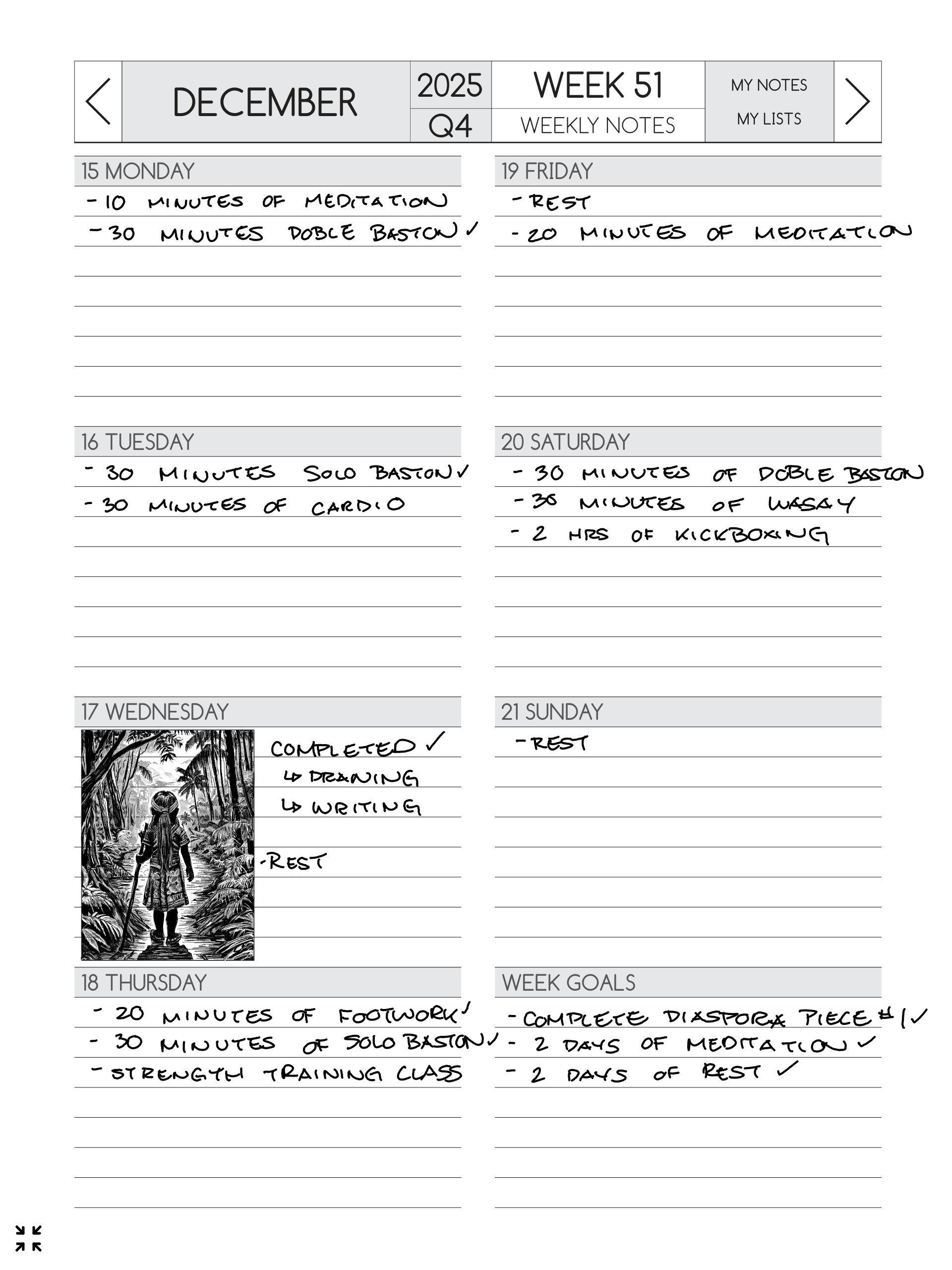
Weekly Spread: “Mind + Body Maintenance”


Weekly planning is where I ground myself. It’s less about big goals and more about keeping my system balanced.


What I track here:


  • Exercise tracking

  • Mindfulness


Example in my planner:


  • Exercise: I’ll write “PTK / Run / Strength / Rest” across the week.

  • Mindfulness: I’ll track something like “10 min quiet” or “breathwork” or even just “went outside.”


This spread shows me what kind of week I’m actually living—not the week I planned in my head.


Daily Spread: “The Landing Strip”


Daily pages are where everything lands first. This is the page I’m in the most, because it holds the messy, real-time version of life.


What I use it for:


  • Meetings

  • Daily captures (quick notes, ideas, reminders)

  • Journaling


Example in my planner:


  • Meetings: “11:00 – check-in w/ team”

  • Daily capture: “Remember to submit PTO” / “Idea: blog post on planning spreads”

  • Journaling: a few lines about how the day went, what felt heavy, what felt good


Daily spreads are also where I catch the small things that turn into big things later—ideas, patterns, emotions, lessons. Stuff that doesn’t fit neatly into a calendar block, but matters.


Native Calendar: Quick Reference (Not My Main Hub)


Even though my planner lives in the PDF spreads, I still use Supernote’s native calendar for quick checks—like confirming dates fast, seeing the week layout, or making sure I’m not double-booking myself.


It’s not my main planning space, but it’s a helpful “glance view” when I need it.


Why This System Works for Me


Each spread has a purpose:


  • Yearly = what’s already committed

  • Quarterly = what I’m building this season

  • Monthly = habits + goals + tracking

  • Weekly = mind/body consistency

  • Daily = meetings + captures + journaling


And that’s what makes it sustainable. I’m not trying to force one page to do everything. I’m letting each layer hold what it’s best at—so planning feels supportive instead of overwhelming.


Want more for planning?

Check out->

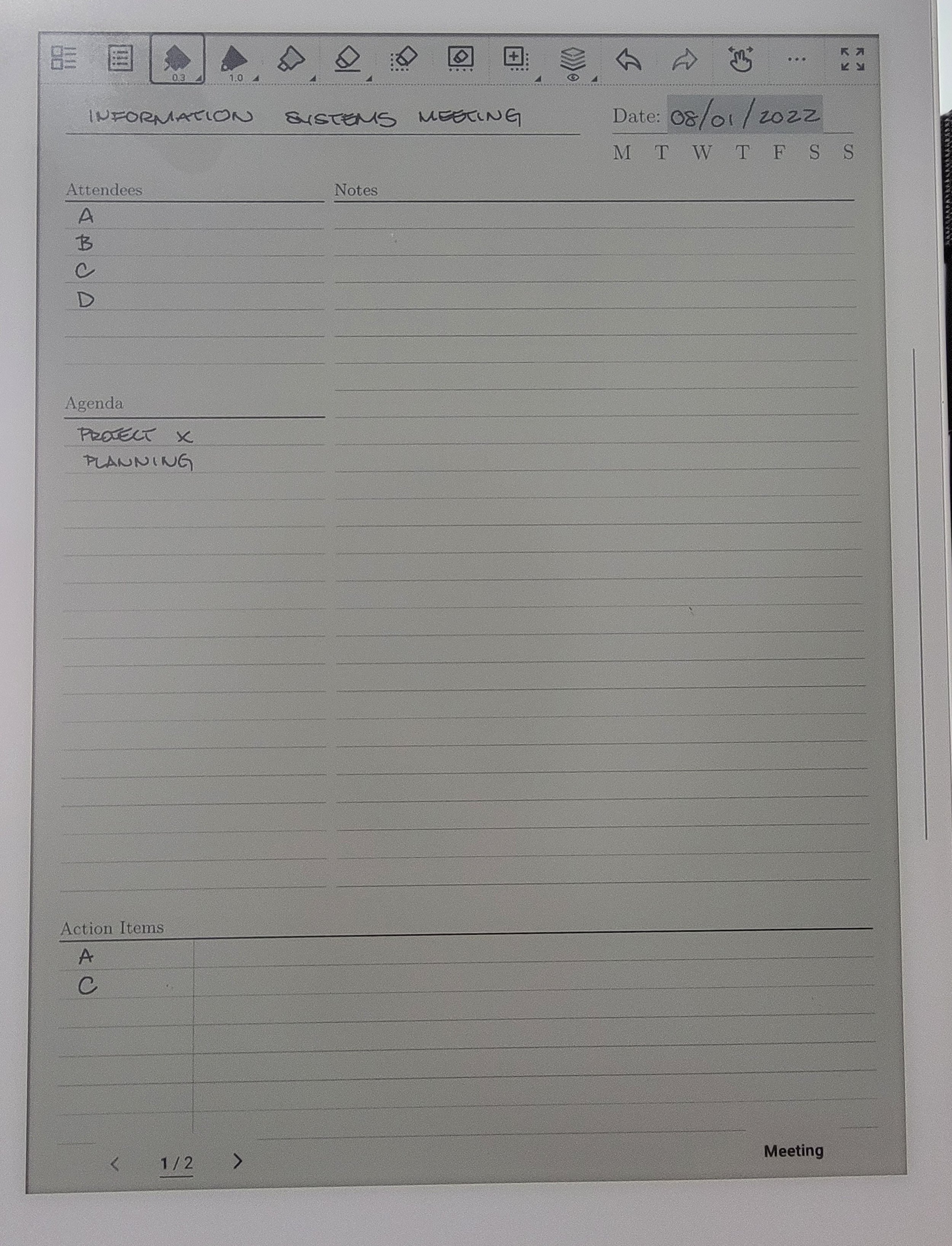
Workflow: Meeting minutes

One notebook for all meetings

Using one continuous notebook will be easier for retrieving notes from a certain meeting

These are the features used on the Supernote for this workflow:

  • Template

  • Layers

  • Title

  • Keywords

  • Star

  1. Create a new notebook

  2. Apply the meeting minutes template

  3. On the main layer fill the following out:

    1. Put the date and turn the date into a title

    2. Give a name to the meeting

    3. Agenda

    4. Action Items

  4. Use the lasso tool to create keywords

    1. I use this feature to create new projects on the horizon discussed in the meeting

  5. Create a star next to any action items assigned to you

  6. Create a new layer and label “Agenda”

    1. This is the layer where all the notes from the meeting is written

  7. Optional: Create a layer and label “Planning”

    1. I use this layer to layout the necessary steps I need to take in order to achieve what was discussed on the “Agenda” layer

  8. Optional: Create a layer and label “Updates”

    1. List any updates that may occur

  9. Toggle between layers to track the progress of the agendas discussed in the meeting.

Workflow: Project Management

Project management with supernote

It will help if you outline what the phases or stages of a project are in your workflow beforehand.

These are the features used on the Supernote for this workflow:

  • Template

  • Layers

  • Title

  • Keywords

  • Star

  1. Create a notebook and use the project template

  2. Create layers and name each layer after a phase/stage in the project plan

    1. Write out each step involved within the phase/stage as a to do

    2. Write out departments or divisions this project involved on the main layer

    3. Toggle the layers to hide and display to track the progress of the project

  3. Use the Lasso tool to create the following

    1. Titles- Name of project

    2. Keywords- I don’t create keywords for all. I only create keywords for projects that are closer to being completed or currently working on.

    3. Star- Use it as a way to prioritize important to do’s within a project. Use sparingly, not everything has the same urgency.

Project Management Workflow Video

Workflow: Studying with the Supernote

Part 3 of 3

Step 5- Time Tracking

Have a goal of how much time you wish to spend studying for the week

  1. Go back to the Study Unit_ , find the completed sections and turn those sections into an Event

  2. Put the amount of time spent on studying that section into the Calendar of the Supernote

    1. List the amount on the Weekly View and use the last box as a Total amount for the week

Step 5 Video

Step 6- Feedback and Reflection

  1. Take a screenshot of Study Unit _ and set as screensaver

    1. If I did not meet my goal for the week, I use the screenshot as a reminder to tackle my missed goals the upcoming week.

Step 6 Video

Workflow: Studying with the Supernote

Part 2 of 3

Step 3 - Questions

  1. Create a new page in the same notebook with the Cornell Template again

  2. Write down all the questions from the section on the main layer

  3. Create a new layer and label it “Explanations”

    1. Write down the explanations for the questions on this layer

  4. Toggle between layers to administer a pop quiz to yourself

  5. Put a Star next to these pages with the questions for easy access from TOC

Bonus Step- Add more layers

  • Adding more layers can help expedite the development of comprehension

Step 3 Video

Step 4 - Checklist

  1. After completing each section go back to the TOC and mark these sections as complete

Step 4 Video

Workflow: Studying with the Supernote

Part 1 of 3

This is going to be a 3 part series. In this scenario an actual physical book is used to study with. Workflows and entries with different scenarios will be discussed in future posts.

Features on Supernote that are used in this workflow:

  • Table of Contents aka TOC

  • Titles, Keywords, Star and Events

  • Templates

  • Layers

  • Calendar

  • Screenshot

  • Screensaver

Step 1- Creating the TOC

  1. Create a new notebook and apply the checklist template

  2. Replicate the table of contents from the book by chapters on the Supernote

  3. Recreate the breakdown of each section as a “Study Unit _”

    1. Leave space for “Date" as completed

  4. Turn all the headers into Titles

Step 1 Video

Step 2- Comprehension and Note Taking

  1. Start a new page on the same notebook and apply the Cornell Template

  2. Read a section from the book and note all the important items on the Supernote

  3. Turn the name of the section into a Keyword

  4. Create a new layer and rename it to “Answers”

    1. On the “Answers” layer, write the meaning of the important item in your own words.

  5. Toggle between the “Main” and “Answer” layer to give yourself a test

Step 2 Video